


 (877) 897-1725


Table Of Contents
Table Of Contents
If you run a local business, or you manage local SEO for clients, you have almost certainly felt this exact frustration: your Google Business Profile is generating calls, direction requests, and website clicks every single day, but none of that activity shows up anywhere inside Google Analytics 4. You can see website sessions. You can see conversions. You cannot see what happened before someone ever reached your site.
That blind spot finally has a fix. In June 2026, Google began rolling out a native way to link Google Business Profile to GA4, pulling local engagement data directly into your existing Analytics reports. No manual exports. No spreadsheets stitched together at the end of the month. Just one connection, made once, that keeps local and website data in the same place going forward.
This guide walks through exactly how to link Google Business Profile to GA4, what permissions you need before you start, what data becomes available once the connection is live, where the integration still falls short, and how to fill those gaps with a smarter tracking setup. Whether you manage one location or twenty, by the end of this guide you'll have a working, verified integration and a clear plan for using the data it produces.
What Is Google Business Profile?
Google Business Profile (formerly Google My Business) is the free listing that controls how your business appears on Google Search and Google Maps. It's the panel that shows your address, phone number, hours, reviews, photos, and posts whenever someone searches for your business by name or searches for services near them. Customers can call you, request directions, message you, book an appointment, or check your menu directly from that listing, often without ever visiting your website.
What Is GA4?
Google Analytics 4 (GA4) is Google's current analytics platform, built around events rather than sessions. It tracks what visitors do on your website and app: which pages they view, which forms they submit, and which purchases or leads they generate. Historically, GA4 had no visibility into the Business Profile itself. It could tell you a visitor arrived from "Google / organic," but it had no way to distinguish a click from Search results from a click that originated on your Maps listing, and it had zero visibility into calls, direction requests, or bookings made straight from the profile.
Why You Should Link Google Business Profile to GA4
For most local businesses, the Google Business Profile is a major source of leads that Analytics has always missed. Linking the two accounts closes that gap in a few concrete ways, and it pairs naturally with the performance-monitoring habits any solid local SEO strategy already depends on:
- You see the full customer journey. Instead of jumping between GBP Insights and GA4, both data sets sit in one report.
- You can finally measure call and direction volume alongside website conversions, giving you a true picture of local ROI.
- You get cleaner client and stakeholder reporting. One dashboard tells the whole local SEO story instead of two disconnected ones.
- You catch problems faster. A sudden drop in profile interactions is now visible in the same place you already check daily.
- It costs nothing and takes minutes. There's no fee and no code required to link up.
Before You Start: Permissions and Requirements
The connection itself is quick, but it will not work at all if your account permissions aren't in order first. Google enforces separate permission levels for each product, and both have to be satisfied by the same person completing the setup.
- GA4 access: You need Editor or Administrator access on the GA4 property you want to connect. Viewer or Analyst-level access will not show the linking option.
- Google Business Profile access: You need to be an Owner or Manager of the specific listing(s) you want to link. Being able to simply view the listing is not enough.
- A verified Google Business Profile. Unverified listings won't appear as an option to select.
- An active GA4 property that is already collecting data (not a legacy Universal Analytics property, which no longer processes data).
- Matching Google accounts. The smoothest setup is when the same Google account manages both the GBP listing and the GA4 property. If they live under different accounts, make sure the account you're logged into during setup has access to both, or the listing simply won't appear in the selection screen.
If you're an agency or freelancer managing this for a client, sort out access before you start. Ask the client to grant Editor access on the GA4 property and add your email as a Manager on the Business Profile. Trying to troubleshoot a missing listing mid-setup, only to discover the permissions were never granted, is the single most common reason this process stalls.
How to Link Google Business Profile to GA4: Step-by-Step
With permissions confirmed, the actual connection takes only a few clicks. The steps below match Google's own setup instructions, walked through inside a real GA4 property.
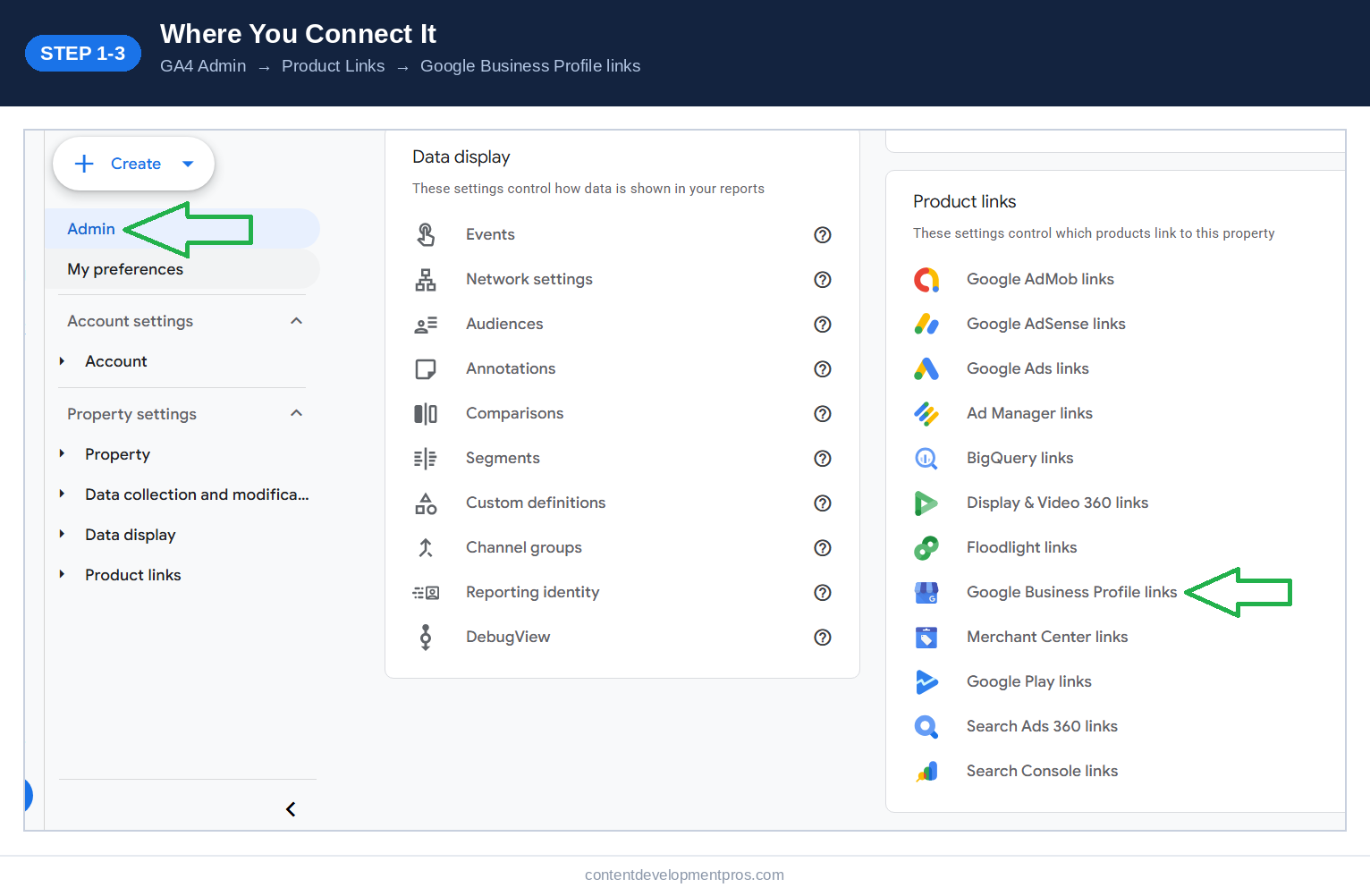
Where to connect it: GA4 Admin > Product Links > Google Business Profile links.
- Open GA4 and go to Admin. Sign in to Google Analytics and select the property you want to connect. Click the gear-shaped Admin icon in the bottom-left corner of the screen.
- Find Product Links. Under the Property column in the Admin panel, scroll down and click Product Links, sometimes labeled Product Link Settings or Resource Settings, depending on your interface version.
- Select Google Business Profile links. Inside Product Links you'll see a list of available integrations, including Google Ads, Search Console, BigQuery, and Google Business Profile links, as shown above. Click on it.
- Click Link, then choose your listing. Click the blue Link button. You'll be asked to choose the Business Profile listing(s) you manage under your current Google account. If you manage multiple locations and want them all reporting into this property, select all of them at this step. If nothing appears, your account may not have Manager or Owner access, or you may be signed in to the wrong Google account.
- Review and submit. Confirm which listings you're connecting and click Next, then Review, then Submit. That's it. The connection is now live.
Once submitted, GA4 creates a dedicated Business Profile collection inside your Reports section. It won't populate instantly. Give it a short processing window, typically a day or so, before you go looking for data. Any updates you make to your profile later, like new hours or a changed phone number, will also sync back into Analytics automatically after a brief delay.
Where to Find Your Business Profile Data in GA4
Once the connection is live, don't go looking under your usual acquisition or engagement reports, the Business Profile data lives in its own dedicated section. In the left-hand report menu, scroll down past your other report collections to a new Business Profile group, then click Overview. That's your new home base for everything covered in the next section.
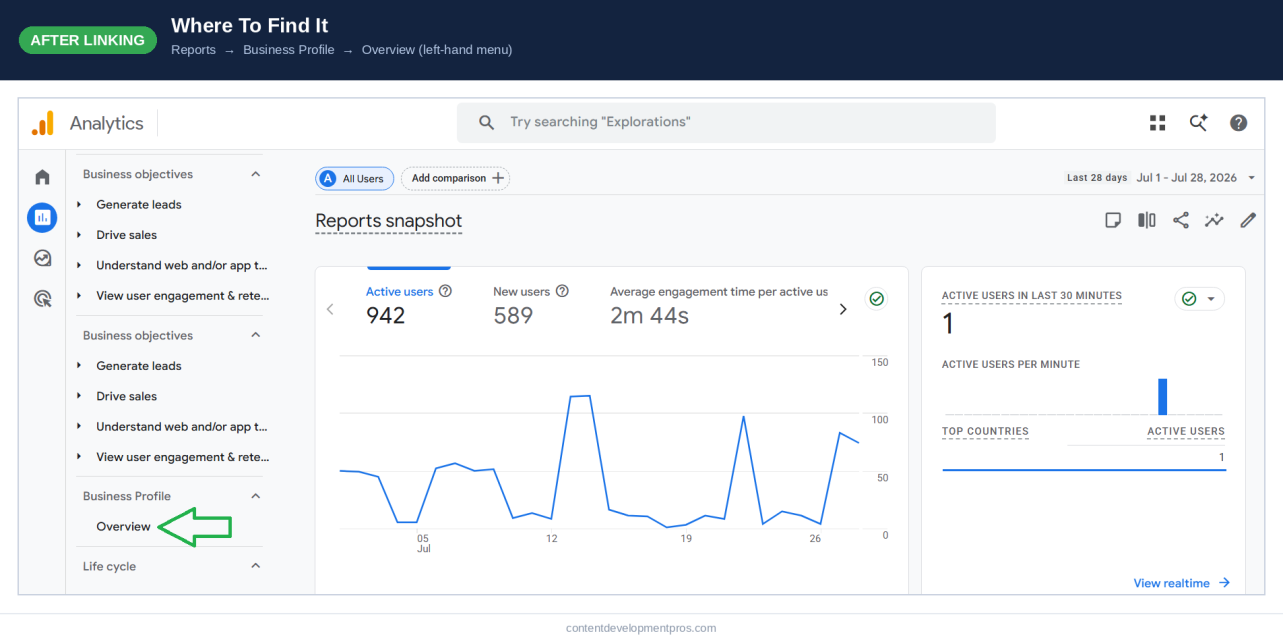
Where to find it: Reports > Business Profile > Overview, in the left-hand menu.
What Data You'll See After You Link Google Business Profile to GA4
Google's own documentation on the integration lists seven categories of engagement that become visible once the link is active, giving you a level of detail that UTM tracking alone was never able to capture:
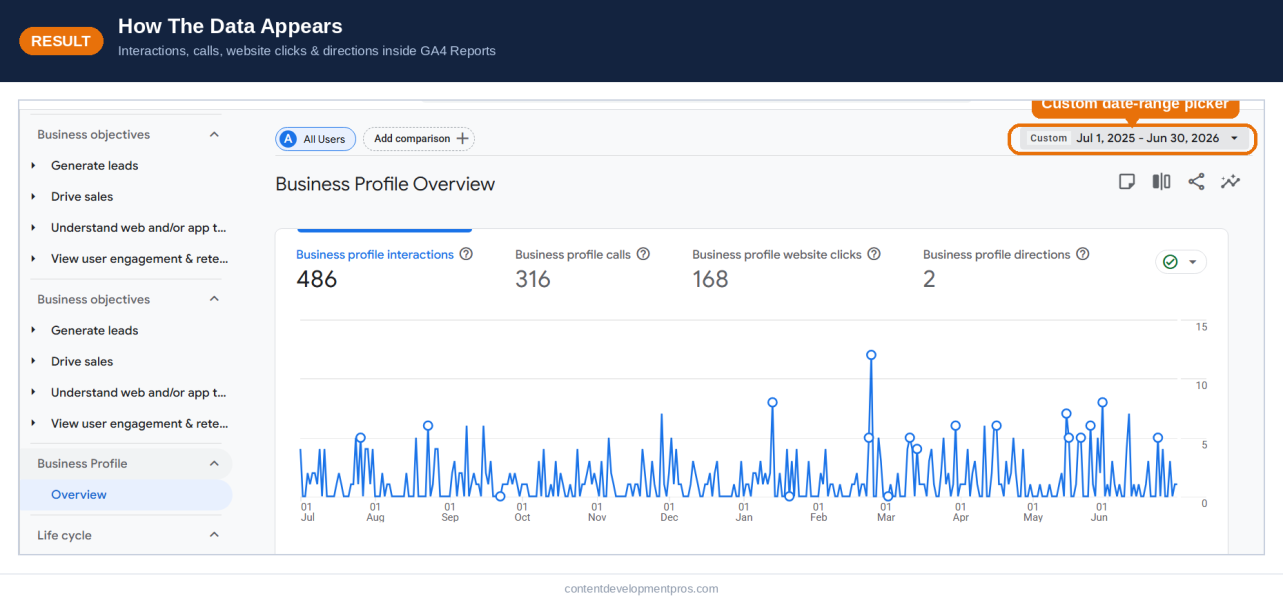
How the data appears: real Business Profile interactions, calls, website clicks, and directions inside GA4 Reports. Note: the date-range picker will accept a longer custom range, but Google still limits the underlying figures to the trailing six months — see Limitations below.
- Interactions – total engagement across every action type combined
- Website clicks – visits that originated from your Business Profile listing
- Calls – phone calls placed directly from the listing
- Directions – requests for directions to your location via Maps
- Messages – messages sent to you through the profile's chat feature
- Bookings – appointments or reservations made straight from the listing
- Menu views – for businesses that have a menu attached to their profile
For the first time, a customer who called your business straight from Maps, without ever landing on your website, shows up somewhere in your reporting. That's a category of activity Analytics simply had no way to record before this integration existed.
Limitations You Should Know Before You Rely on This Data
Linking Google Business Profile to GA4 is a genuine improvement, but it isn't a complete replacement for a full tracking setup. A few constraints are worth planning around, especially if you manage more than one location.
- Aggregated data only. If you connect multiple Business Profile listings to a single GA4 property, all of their metrics are combined. You cannot filter or break the numbers out by individual location inside GA4. Multi-location businesses should keep using the Business Profile performance dashboard for location-level detail.
- No custom explorations. Business Profile metrics live only inside their own dedicated collection. They can't be pulled into GA4 Explorations, comparisons, or custom filtered reports.
- Six-month data retention. Google's own documentation confirms Business Profile metrics are only available for the trailing six months. GA4's report picker will still let you select a longer custom range, like a full year, but the figures returned only reflect that six-month window, not the entire range you selected.
- Subproperties aren't supported. If your GA4 setup uses subproperties as part of a roll-up structure, this integration currently only works at the main property level.
- Rollout is gradual. Not every GA4 account has the option visible under Product Links yet. If you don't see Google Business Profile listed, the feature likely hasn't reached your account.
Do You Still Need UTM Parameters After Linking?
Yes, and this is one of the most common points of confusion. The native connection and UTM tagging solve two different problems, and the strongest setup runs both at once.
The native link captures action-level data that UTM tags were never able to see: calls, direction requests, messages, bookings, and menu views. But that data sits in a fixed, aggregated collection with no filtering flexibility and a six-month retention cap. UTM parameters, by contrast, only track website clicks, but that click data behaves like any other GA4 traffic. It can be segmented by location, filtered in Explorations, and retained under your property's standard settings well beyond six months.
If you haven't already, tag the website URL on your Business Profile with consistent UTM parameters, something like
- utm_source= google
- utm_medium= organic
- utm_campaign= google_business_profile
Keep every value lowercase. GA4 treats "GBP" and "gbp" as two separate campaigns, and that kind of inconsistency quietly splits your data for as long as it goes unnoticed. Use both methods together: the native link for full action-level visibility, and UTM tags for flexible, long-term segmentation. If you're weighing whether to manage this kind of tracking setup yourself or bring in help, our breakdown of SEO service vs. DIY SEO walks through exactly that decision.
Common Problems When You Try to Link Google Business Profile to GA4
The listing doesn't appear in the selection screen
This almost always comes down to permissions or the wrong account. Confirm you're logged into the Google account that has Owner or Manager access on the listing, not just view-only access, and check whether the listing itself is verified.
The Link button is greyed out
This means your GA4 role doesn't meet the minimum requirement. You need Editor or Administrator access on the property; Viewer and Analyst roles cannot create product links.
Data isn't showing up in Reports yet
Give it time. New connections typically need a short processing window before the Business Profile collection starts populating. If several days pass with nothing, double check that the connection actually completed by revisiting Admin > Product Links > Google Business Profile links.
You manage the client's listing but not their GA4 property (or vice versa)
Ask for the missing access before troubleshooting anything else. Both permissions have to exist under the same Google account performing the setup; there's no workaround for this requirement.
You need to unlink or change accounts later
Go back to Admin, click Google Business Profile links under Product Links, find the connection in the table, click the three dots, and select Delete. The link can only be removed from inside GA4 itself.
Turning This Data Into Better Local SEO Decisions
A working integration is only useful if someone is actually reading the reports and acting on them. Once your Business Profile data is flowing into GA4, look for a few patterns on a regular basis:
- Rising direction requests with flat website clicks often signals that your profile itself is driving strong local intent, even if your website content still needs work.
- A sudden drop in calls or messages is frequently an early warning sign of a suspended listing, an incorrect phone number, or a review-driven trust problem.
- Strong booking or menu-view activity suggests these features are worth expanding on, not treating as a checkbox.
This is exactly the kind of ongoing monitoring, optimization, and review management that a dedicated GMB optimization service is built to handle. Keeping categories, attributes, photos, posts, and Q&A current isn't a one-time task, it's a maintenance job that directly affects how much of this new GA4 data trends in the right direction. If you want a deeper walkthrough of that side of the work, our complete guide to Google Business Profile optimization and our guide to sustainable Business Profile organic growth cover the strategy in more depth.
If you're managing several locations, or you simply don't have the bandwidth to check GA4's Business Profile reports every week, a full Google Business profile management service can take that recurring work off your plate entirely, pairing hands-on profile optimization with the analytics setup covered in this guide so nothing slips through the cracks. For more ways to turn the metrics you're now tracking into actual foot traffic and calls, see our posts on increasing Google Business Profile traffic and dominating local SEO with your Business Profile.
Conclusion
Linking Google Business Profile to GA4 closes one of the most persistent gaps in local SEO reporting. In under five minutes, and with the right permissions in place, you go from guessing how your Business Profile contributes to your business to actually seeing calls, direction requests, messages, bookings, and menu views sitting right next to your website data. Keep your UTM tags running alongside the native connection, check the reports on a set schedule, and you'll have a complete, accurate view of how customers move between your Business Profile and your site.
Need help setting this up correctly, or keeping your profile optimized once the data starts rolling in? Contact our team and we'll handle the technical setup and the ongoing optimization together.
Related Reading
For more on getting the most out of your Google Business Profile alongside the tracking setup in this guide:
- The Ultimate Guide to Google Business Profile Optimization
- Google Business Profile Organic Growth: A Complete Guide
- 5 Easy Steps to Increase Google Business Profile Traffic
- How to Dominate Local SEO with Google Business Profile
- The Comprehensive Guide to Local SEO Success for Your Business
Frequently Asked Questions
How do I link my Google Business Profile to GA4?
Sign in to your GA4 property, click Admin, open Product Links, select Google Business Profile links, click Link, choose the listing(s) you manage, review your selection, and click Submit. The process takes under five minutes once your permissions are correctly set up.
What permissions do I need to connect Google Business Profile to GA4?
You need Editor or Administrator access on the GA4 property and Owner or Manager access on the Google Business Profile listing. Both must be available under the same Google account you use to complete the setup.
Do I still need UTM parameters after linking Google Business Profile to GA4?
Yes. The native link captures calls, direction requests, messages, and bookings, but it doesn't support filtering or long-term retention. UTM parameters still handle segmented, long-term tracking of website clicks from your profile. Running both together gives you the most complete picture.
How far back does Google Business Profile data go in GA4?
Google's own documentation confirms Business Profile metrics are available for the trailing six months only. You can select a longer custom date range in GA4's report picker, but the figures returned will still reflect just that six-month window.
Can I see data for each location separately if I manage multiple Business Profiles?
No. When multiple listings are connected to a single GA4 property, their metrics are aggregated together. For location-level detail, continue using the Google Business Profile performance dashboard.
Why can't I see the option to link Google Business Profile in my GA4 account?
The feature is rolling out gradually across accounts. If it isn't visible yet under Product Links, it likely hasn't reached your account. It's also possible your GA4 role doesn't have sufficient permissions to view the option.
How do I unlink Google Business Profile from GA4?
Go to Admin, click Google Business Profile links under Product Links, find the connection, click the three dots next to it, and select Delete. The link can only be removed from inside the GA4 interface.
Where do I find Business Profile data once it's linked?
A dedicated Business Profile collection appears under Reports in GA4 once the connection is active, showing interactions, website clicks, calls, directions, messages, bookings, and menu views.
Contact CDP Today!
Ready to talk to one of our web copy experts?


By: Adam Meyers
Adam Meyers is a content and business strategist at Content Development Pros, where he works with businesses to develop clear, engaging, and purposeful content that connects with their audiences. His work spans business, technology, digital marketing, branding, and emerging industry trends.


